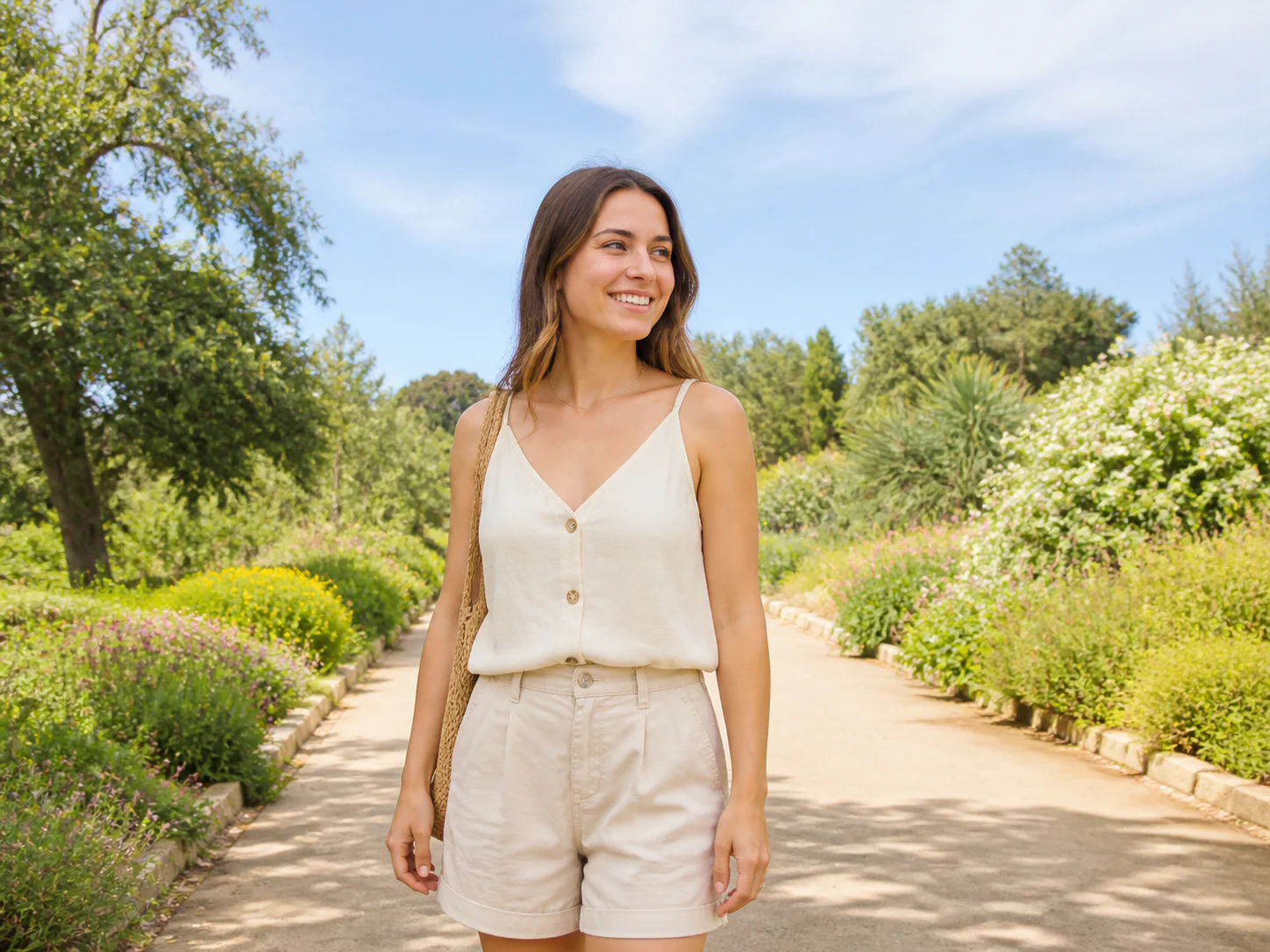
 4:3 source preview
 1:1 JPG crop
Choose the destination ratio before moving the photo
Use 1:1 for square tiles, 3:4 for portrait layouts, 4:3 for a familiar photo frame and 16:9 for wide screens or covers. The destination should determine the crop, not whichever preset fills the preview fastest.
If several placements are required, create separate copies from the uncropped master.
- Confirm the required ratio
- Record any minimum pixel dimensions
- Keep the source as a separate file
Protect faces, hands and meaningful context
Leave comfortable space above the head and around the direction of the subject's gaze. Avoid cutting through joints, fingertips, glasses frames or objects the person is using.
Context can carry the story. In the sunny garden example, the square keeps the path and foliage while removing empty outer edges.
Use the smallest zoom that creates a clear composition
Zooming discards more source pixels. Start at 1×, reposition the image and increase zoom only when unwanted edges remain.
Check that the subject does not become cramped on mobile and that any text or horizon remains level inside the visible frame.
- No important edge is clipped
- Subject has balanced breathing room
- Horizon and vertical lines still feel intentional
Review the pixel dimensions after the crop
Cropping never adds resolution; it removes pixels outside the selected frame. The example changed a 1448 × 1086 source into a 1086 × 1086 square.
If the crop is too small for its destination, approve the composition first and only then consider enlargement. Verify the actual upscaled output dimensions.
- Width and height meet the destination
- Aspect ratio is exact
- No unnecessary upscale is added
Export the format that matches the next step
Use JPG for common photo delivery, PNG for lossless output or transparency and WebP for a smaller modern web asset. Keep editing masters separate from compressed delivery copies.
The MendTrue cropper works in the browser, so the selected source is not sent to the AI provider.

