Upload your photo
Choose a JPG, PNG or WebP from your device. MendTrue validates it before processing.
Improve clarity, restore old photos, reduce glare and prepare images for sharing or print—with safety screening before every AI generation.


AI editing sends your images to third-party providers. Authorized staff may review separate private copies for up to 24 hours. Our deletion deadlines do not apply to providers’ copies. Photo storage and deletion.
Choose one photo and enhancement starts automatically.
JPG, PNG, WebP, HEIC/HEIF, AVIF, TIFF or camera RAW · up to 100 MBMeet your clay mini-me, turn your pet into a gentle giant or put a trip inside a snow globe. Start with a selfie, a memory or an everyday moment.
Explore every fix with a dedicated example, then open the exact workspace preset you need.
Clear lens reflections while keeping eyes, frames and skin texture natural.
Open this tool

Increase resolution for sharing and printing—not just the DPI number.
Open this toolRepair age-related damage first, then preview natural color on the same restored photo.
Open this tool Original old photo
 Restored in B&W
 Restored + natural color
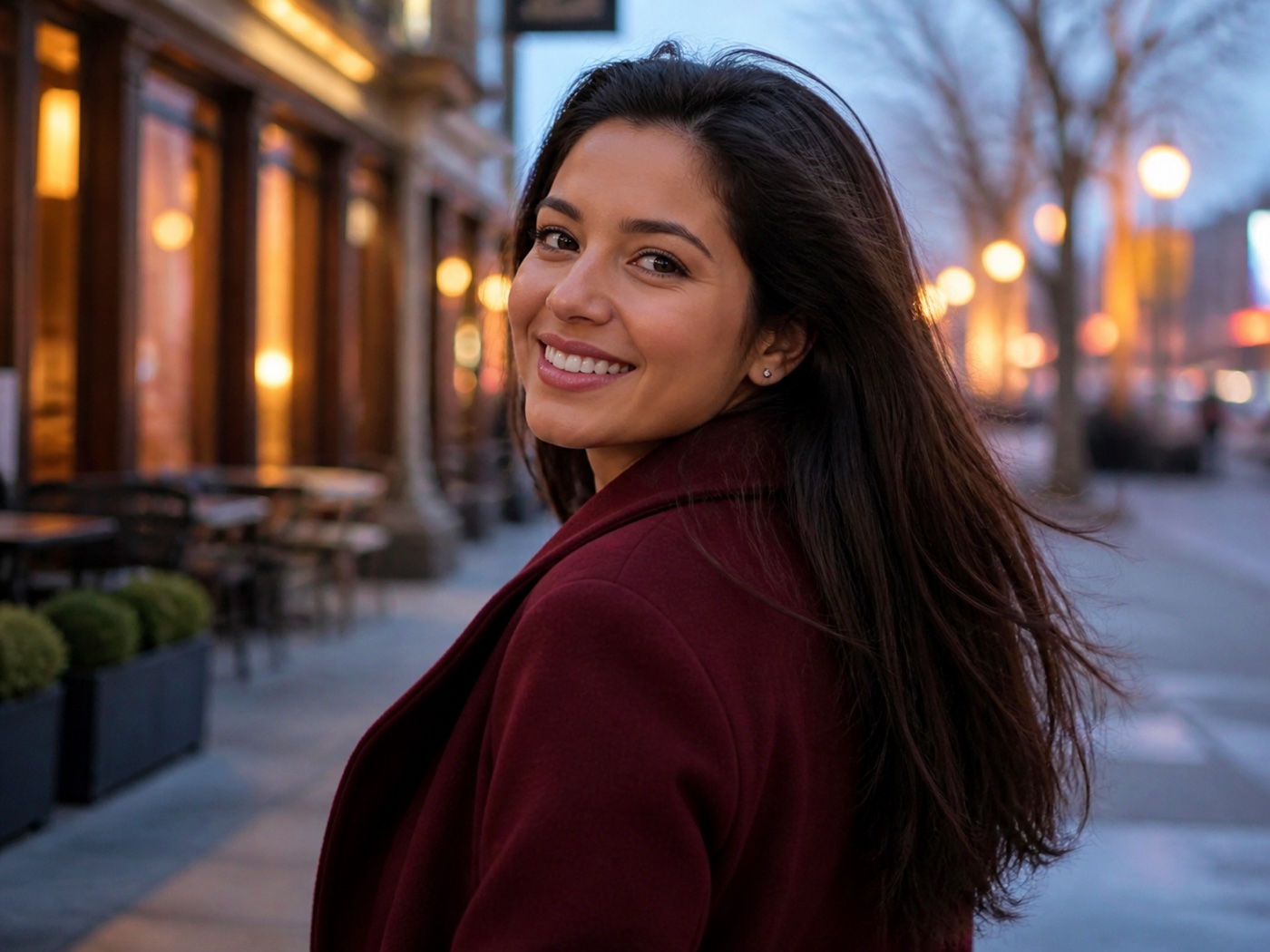
Recover useful edge detail from soft focus and mild motion blur.
Open this tool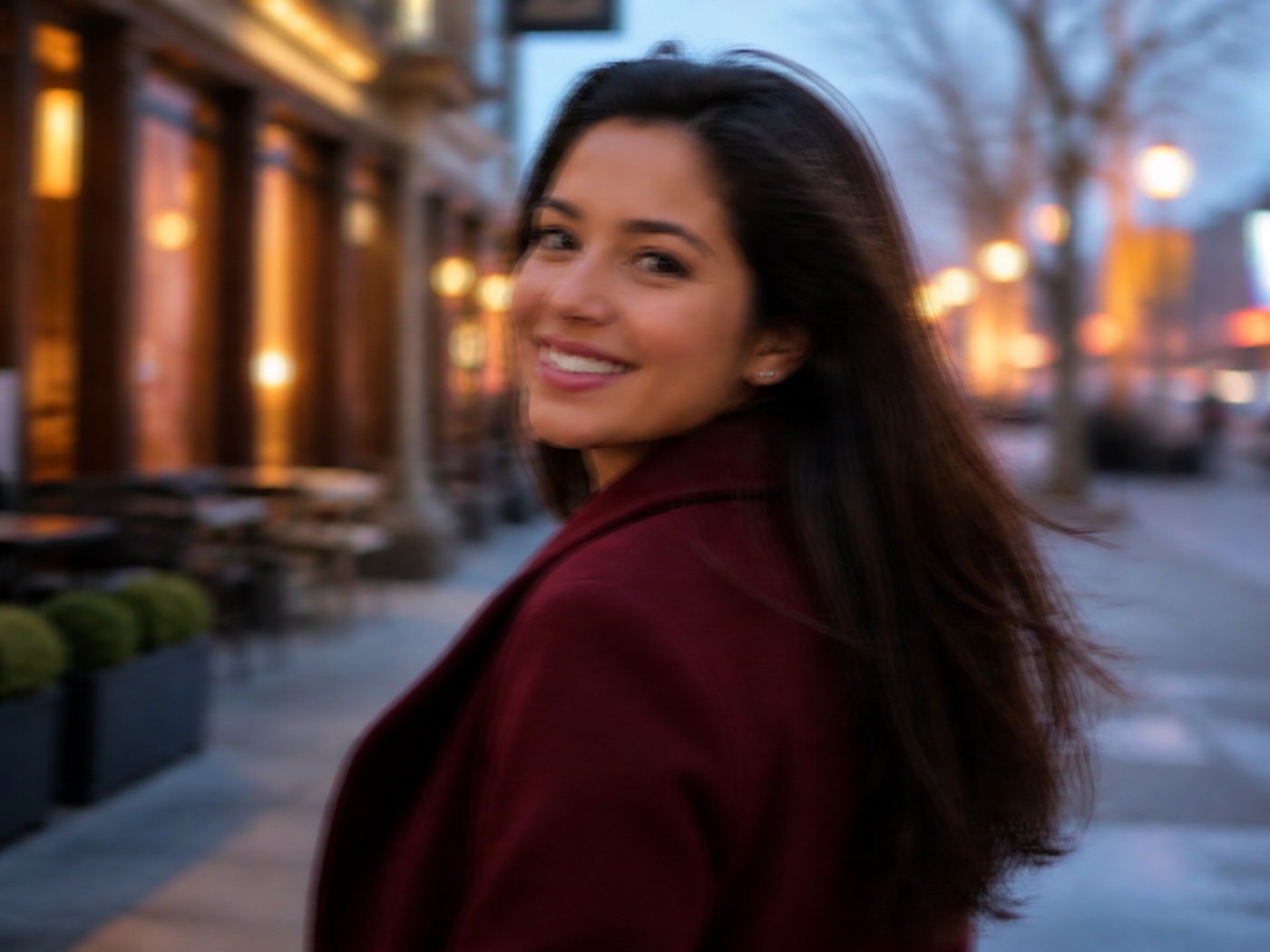
Find surface damage, repair it selectively and preserve untouched areas.
Open this toolBring back contrast, exposure and natural color without oversaturation.
Open this tool

Reduce reflected light on printed photos without flattening the whole image.
Open this tool

Clean unwanted passersby and rebuild the background around them.
Open this tool
 Clean result
Choose the visible photo problem, review the focused result and keep control of the final file.
Choose a JPG, PNG or WebP from your device. MendTrue validates it before processing.
Improve clarity, restore damage, prepare a portrait or edit a background while keeping the request within the safety policy.
Inspect faces, text, textures, edges and composition, then download only the result you approve.
Enhancement tools prioritize the visible photo problem. Adult or sexual content, face manipulation, deepfakes and harmful generation are prohibited.
Read our five-step review methodologyFace fidelity is a release gate, not a marketing afterthought.
Black-and-white photos stay monochrome unless you choose otherwise.
Browser-local tools stay local; provider-backed edits are labeled before upload.
Find the right fix, know what to expect, and get ready to upload.
MendTrue can sharpen blurry photos, enlarge small images, restore damaged old photos, reduce glare, remove unwanted objects and improve lighting. Choose the tool for your photo’s main problem, then compare the result with your original.
Unblur can improve soft edges and visible detail, but AI may also change facial features, text or textures. Start with your best original and compare the face closely. Detail that is completely missing cannot be reliably recovered.
Yes. Photo restoration can reduce scratches, fading and torn areas. Colorization is optional, so leave it off to keep a black-and-white photo. For the best starting point, upload a clear scan or a well-lit photo of the print.
Yes. Use glasses glare removal for reflections on lenses, or photo glare removal for bright reflections elsewhere. AI can reconstruct covered areas, so check eyes and nearby detail carefully; fully white highlights may not contain recoverable detail.
Yes. Open the object removal tool, upload the photo, brush over the unwanted area and describe what to remove. AI fills the area using the surrounding scene. Simple backgrounds are usually easier; inspect edges, shadows and repeating patterns before saving.
You can select several fixes for one photo in the workspace and generate one combined result. Paid subscriptions also include batch processing for up to 20 photos. Each generated photo uses credits, including each photo in a batch.
Yes, in a mobile or desktop browser. Supported formats include JPG, PNG, WebP and HEIC/HEIF, with source files up to 100 MB and at least 128 × 128 pixels. If a phone photo will not open, convert it to JPG and try again.
Use image upscaling or the 4K model option for a larger result. AI output dimensions can vary; 4K is not a guarantee of exactly 3840 × 2160 pixels or a fixed enlargement ratio. Download as PNG, JPG or WebP where your browser supports it, and check the actual dimensions.
Yes. Your first sign-in grants 5 credits once, valid for 30 days: enough for one AI photo. Each AI photo costs 5 credits, including combined fixes and 4K. More credits are available through subscriptions or one-time packs. Crop and format conversion use no AI credits.
Your photos are not posted to a public gallery. AI processing sends them to image providers and uses temporary storage for delivery, recovery and safety review. Crop and format conversion run locally in your browser. The privacy policy explains retention and deletion.